
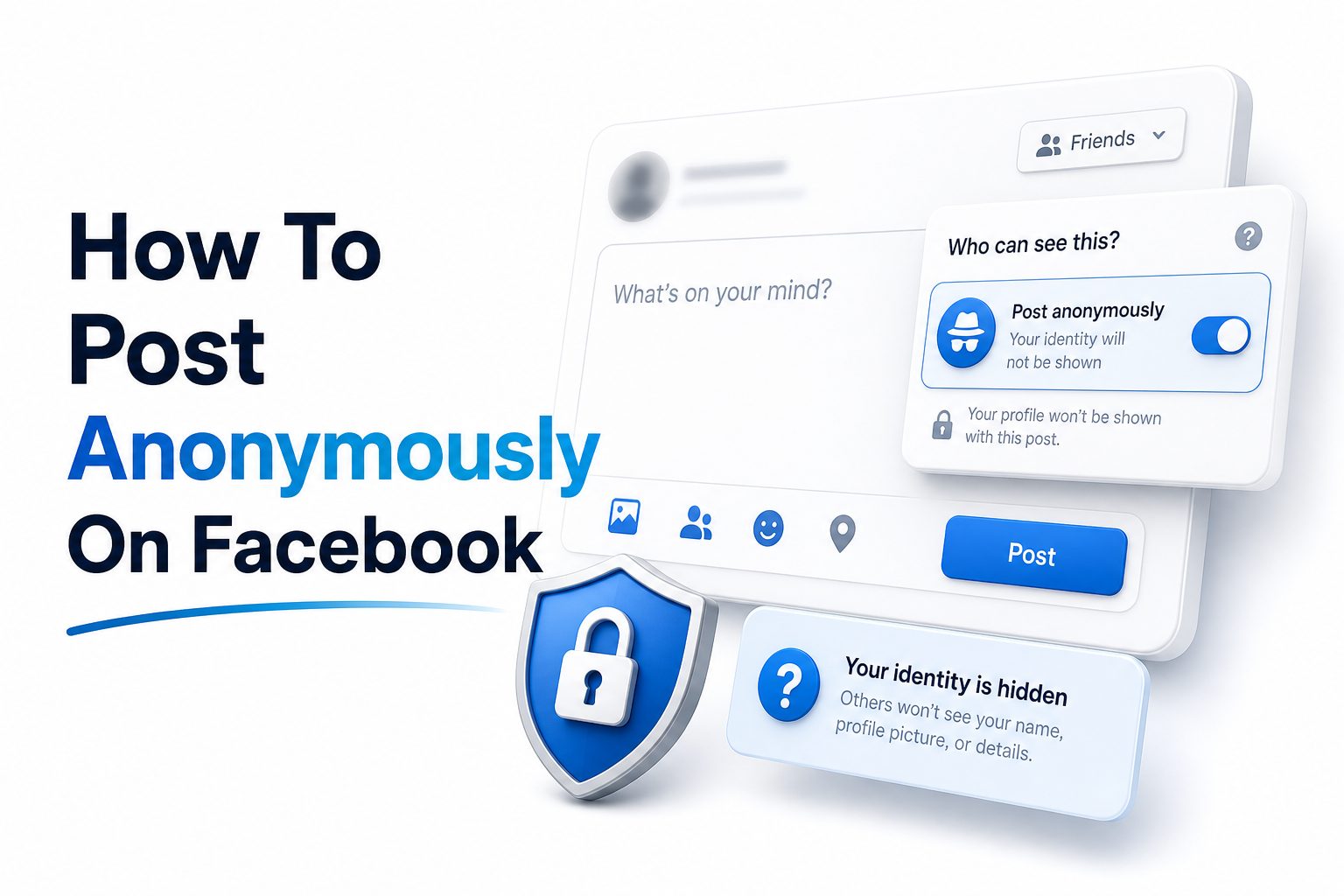
Facebook has made group conversations easier for people who want advice, support, or honest feedback without putting their name in front of every member. If you have searched for how to post anonymously on Facebook, you are probably trying to share something personal, sensitive, or simply private inside a group. The good news is that Facebook does allow anonymous posting, but only in certain groups and only when the feature is enabled.
Anonymous posting is most common in support groups, parenting groups, neighborhood communities, job search groups, health discussions, and niche communities where members may not want their profile attached to every question. Still, anonymous does not mean invisible. Group admins, moderators, and Facebook systems may still see who submitted the post. This guide explains where anonymous posting works, how to use it on mobile and desktop, what limitations apply, and how to avoid mistakes that can reveal your identity.
What Anonymous Posting on Facebook Means
Anonymous posting on Facebook lets you publish inside eligible groups without showing your name or profile picture to regular group members. Instead, your post may appear as coming from an anonymous member, anonymous participant, or a nickname if the group supports that option.
This feature is built for group participation, not regular profile posts, pages, Marketplace listings, or public timeline updates. If you post on your own profile, Facebook does not offer a native anonymous option. Your privacy settings can limit visibility, but your name remains attached.
Where Anonymous Facebook Posts Are Available
Anonymous posting is mainly available inside Facebook Groups. Even then, it depends on three things: the feature must be available to you, available in that group, and allowed by the group admins. If any one of those conditions is missing, the option will not appear.
Some groups allow anonymous posts but still require admin approval before publishing. Others publish anonymous posts right away. Facebook may also limit certain anonymous features, such as nicknames, comments, or reactions, depending on account access, group settings, and regional availability.
Quick Facts About Anonymous Facebook Posting
- Anonymous posting is mainly for Facebook Groups.
- Group admins and moderators may still see your identity.
- Facebook systems can identify the account behind the post.
- Not every group allows anonymous participation.
- Some anonymous posts need approval before appearing.
- Your wording, screenshots, or details can still reveal who you are.
How to Post Anonymously on Facebook From Desktop
To post anonymously from a computer, open Facebook in your browser and go to the group where you want to publish. Click the post box, usually labeled “Write something,” then look for the anonymous posting toggle or anonymous participation option.
Turn the toggle on, read the privacy notice, and write your post as usual. When you submit it, Facebook may send it to admins for review or publish it immediately, depending on the group’s settings and approval rules.
How to Post Anonymously on Facebook From Mobile
On the Facebook mobile app, go to the group where you want to post. Tap the post composer at the top of the group feed. If anonymous posting is available, you should see an option to post anonymously before publishing.
Enable the option, then write your post, add any allowed media, and submit it. If Facebook shows a confirmation message, read it carefully. It usually explains who can still see your identity and whether your anonymous post may need review.
Desktop and Mobile Posting Comparison
Platform | Where to Start | What to Look For | Best For
Desktop | Group page post box | Anonymous posting toggle | Longer posts and careful editing
Mobile app | Group post composer | Post anonymously option | Quick posts and replies
Mobile browser | Group post composer | Anonymous option if supported | Posting without the app
Facebook Lite | Group composer | Availability may vary | Basic posting on slower devices
Why the Anonymous Post Option May Be Missing
If you do not see the anonymous posting option, the most likely reason is that the group admin has turned it off. Facebook gives admins control over whether members can submit anonymous posts, comments, and reactions in eligible groups.
The option may also be unavailable because Facebook has not enabled it for your account, region, device, or that specific group type. Updating the app, switching devices, or checking another group can help confirm whether the issue is local or group-specific.
What Group Admins and Moderators Can See
Anonymous posting hides your identity from regular group members, but it does not hide you from admins, moderators, or Facebook systems. According to Facebook’s Help Center, admins and moderators can access the identity behind anonymous participation when needed for safety and rule enforcement.
This matters because anonymous posting should not be treated as a way to bypass group rules. If a post breaks community standards, harasses someone, spreads private information, or violates group policies, admins can still act on the account behind it.
Before You Publish Checklist
- Check whether the group allows anonymous posts.
- Read the group rules before writing.
- Remove names, dates, locations, and screenshots that identify you.
- Avoid mentioning details only a few people would know.
- Preview your post before submitting it.
- Remember that admins and moderators may still see your profile.
- Keep a copy of important text in case the post is not approved.
How Anonymous Comments and Reactions Work
Facebook’s anonymous participation features may include anonymous posts, comments, and reactions, but availability can vary. In many cases, comments you add to your own anonymous post stay anonymous inside that thread, while comments elsewhere may show your normal profile.
Before commenting, check the identity selector near the comment box if Facebook shows one. If you see your profile picture or name, your comment may not be anonymous. This small detail is easy to miss, especially on mobile.
Using Nicknames for Anonymous Participation
Some Facebook groups allow members to use a nickname while participating anonymously. Instead of appearing only as an anonymous member, you can choose a display name that fits your group activity without exposing your main profile to regular members.
Nicknames should not impersonate another person, mislead members, or violate Facebook’s community rules. Using the same nickname across several groups may make it easier for people to connect your activity, so choose carefully if privacy is important.
Privacy Tips for Safer Anonymous Posting
- Rewrite personal stories with less specific detail.
- Crop screenshots before posting them.
- Remove names from images, documents, and notifications.
- Avoid mentioning exact workplaces, schools, or neighborhoods.
- Do not reuse a unique writing style if people may recognize it.
- Use a different nickname for different sensitive groups when possible.
What You Should Avoid in Anonymous Posts
Do not assume anonymity gives you permission to post anything without consequences. Avoid threats, accusations without evidence, personal data, medical misinformation, financial scams, and screenshots that expose someone else’s private information.
You should also avoid including identifying clues by accident. A post about a “small office of six people in downtown Boise” may be more revealing than you think. Anonymous posting protects your profile label, not every detail inside your message.
Anonymous Posting in Public and Private Groups
In private groups, anonymous posts usually appear as coming from an anonymous member. In public groups, they may appear as coming from an anonymous participant. The wording can differ, but the core idea is that regular viewers do not see your main profile.
Public groups deserve extra caution because new content in public groups may be visible beyond the group itself. If your topic is sensitive, a private group with strict moderation is usually a better place to ask for help or feedback.
Public vs Private Group Considerations
Group Type | Visibility Risk | Anonymous Label | Best Use Case
Private group | Lower, but members can still see content | Anonymous member | Sensitive support discussions
Public group | Higher because posts may reach wider audiences | Anonymous participant | General advice or broad community topics
Admin-reviewed group | Lower chance of rule-breaking posts appearing | Varies by group | Health, legal, parenting, or workplace topics
Open discussion group | More unpredictable visibility | Varies by group | Low-risk opinions and casual questions
How Admin Approval Affects Anonymous Posts
Many groups require anonymous posts to be reviewed before they appear. This protects the community from spam, abuse, duplicate questions, and posts that break rules. If your post does not appear immediately, it may simply be waiting in the approval queue.
Admins can approve, decline, or ask you to edit the post depending on their group policies. A clear, respectful post with enough context and no personal attacks is more likely to be approved quickly than a vague or inflammatory submission.
How to Write a Good Anonymous Facebook Post
A strong anonymous post gives enough context for people to respond without exposing unnecessary personal details. Start with the main issue, add relevant background, and ask a clear question. This helps members give practical advice instead of guessing what you need.
For example, instead of writing a long emotional story with names and locations, summarize the situation. Say, “I recently changed jobs and need advice on handling a difficult manager,” then explain the behavior without identifying the company or people involved.
Good Anonymous Post Formula
- Start with one sentence explaining the situation.
- Add only the background needed for useful replies.
- State what kind of advice you want.
- Remove identifying details before publishing.
- Keep the tone calm and specific.
- End with a clear request, such as advice, resources, or next steps.
Can You Post Anonymously Outside Facebook Groups
Facebook does not provide a normal anonymous posting feature for personal profiles, business pages, comments on public posts, or Marketplace activity. If you post from your profile, your name is attached unless you are using a separate page or profile feature allowed by Facebook.
Changing audience settings is not the same as anonymous posting. You can limit a profile post to friends, exclude certain people, or create custom audiences, but viewers who can see the post will still know it came from you.
Alternatives When Anonymous Posting Is Not Available
If the group does not allow anonymous posting, you can ask an admin whether they accept anonymous submissions by message. Some admins post member questions on behalf of users, especially in support communities, but this depends entirely on group policy.
Another option is to search for a different group that supports anonymous participation. Before joining, review the rules, recent posts, moderation style, and privacy setting. A well-moderated group is usually safer than a large, loosely managed one.
Useful Alternatives to Anonymous Posting
- Ask a group admin to post your question for you.
- Join a private support group with anonymous participation enabled.
- Use custom audience settings for personal profile posts.
- Remove sensitive details and post under your name.
- Speak privately with trusted members through direct messages.
- Use a dedicated professional forum when the topic needs expert advice.
Common Mistakes That Reveal Your Identity
The most common mistake is including too many personal details. Specific dates, job titles, family roles, screenshots, locations, and unusual situations can identify you even when your name is hidden from the post.
Another mistake is replying in a way that exposes your normal profile. Before commenting, check whether Facebook is still showing you as anonymous. Interface details can vary, so confirm your posting identity each time you respond.
How to Edit or Delete an Anonymous Facebook Post
If you notice a mistake after publishing, open the post menu and check whether editing is available. Some groups require approval for edits to anonymous posts, so your changes may not appear instantly.
If the post reveals too much or causes problems, deleting it may be the better choice. Keep in mind that members may have already seen it, taken screenshots, or received notifications before you removed it.
When to Edit vs Delete
Action | Use It When | What to Expect
Edit | The post is useful but needs privacy fixes | May require admin review
Delete | The post reveals your identity or private details | Removes it from the group feed
Ask admin for help | The post is sensitive or already spreading | Admin may remove comments or limit replies
Turn off replies | Available only in some contexts | Helps reduce further attention
How Group Admins Enable Anonymous Posting
Group admins can manage anonymous participation from group settings when Facebook makes the feature available. They usually need to go to the group, open settings, find anonymous posting under discussion controls, and turn it on.
Admins may also choose whether anonymous posts and edits need approval. For communities dealing with sensitive topics, approval is often wise because it protects members while still allowing people to speak honestly.
Why Some Groups Turn Anonymous Posting Off
Some admins disable anonymous posts because they attract spam, accusations, low-quality submissions, or arguments that are harder to manage. When people feel less visible, moderation can become more demanding for volunteer admin teams.
Other groups turn it off because their purpose requires accountability. Professional groups, buying and selling communities, and local recommendation groups may prefer named posts so members can judge credibility and communicate directly.
Admin Decision Factors
- The sensitivity of topics discussed in the group.
- The moderation team’s ability to review posts quickly.
- The risk of harassment or false claims.
- The group’s purpose and trust requirements.
- Member demand for privacy.
- Whether anonymous comments and reactions fit the community culture.
Best Privacy Practices Before Asking Sensitive Questions
If you are asking about health, employment, family conflict, relationships, legal concerns, or finances, take extra time before publishing. Remove names, exact ages, dates, company identifiers, screenshots with metadata, and references that point back to you.
For high-stakes topics, Facebook groups can offer peer support, but they should not replace qualified advice. Use group responses as a starting point, then speak with a professional when the decision could affect your safety, money, rights, or health.
How Anonymous Posting Affects Trust and Replies
Anonymous posts can get honest answers because members focus on the issue instead of the person. They are especially useful when people need help but fear judgment from friends, neighbors, coworkers, or relatives in the same group.
At the same time, some members may trust anonymous posts less, especially if the claim is serious or lacks detail. You can improve trust by being specific about the situation while leaving out information that identifies people or places.
Ways to Get Better Replies
- Ask one clear question instead of several unrelated ones.
- Mention what you have already tried.
- Keep personal details limited but useful.
- Stay polite when people ask follow-up questions.
- Avoid naming people or businesses unless group rules allow it.
- Thank members who give practical responses.
Internal Resources for Better Facebook Privacy
If you often post in groups, it is worth reviewing your wider account settings too. Privacy controls, profile visibility, tagging settings, and audience lists all affect how much information other people can connect to your Facebook activity.
You may also find these related guides useful: [Internal Link: Facebook Privacy Settings] and [Internal Link: Social Media Safety Tips]. They can help you reduce profile exposure beyond anonymous group posts.
Official Facebook Guidance Worth Checking
Facebook changes features, labels, and availability over time, so checking official guidance is useful when something looks different in your account. The Facebook Help Center explains that anonymous participation depends on group availability, admin settings, and user access.
You can review Facebook’s guidance here: https://www.facebook.com/help/832270967369626. Admins can also review anonymous participation settings here: https://www.facebook.com/help/372188260706718. These pages are useful if your group settings or posting options do not match what you expect.
Practical Example of an Anonymous Post
Weak version: “Someone at my company is treating me badly and I don’t know what to do.” This is too vague and may not attract useful replies. It also invites speculation because readers do not know what kind of advice you need.
Better version: “I work in a small team and my manager often criticizes me in group chats but gives no private feedback. I want advice on documenting the issue and raising it professionally.” This gives context without naming the employer or manager.
Final Posting Checklist
- Confirm the anonymous option is turned on.
- Read Facebook’s notice before submitting.
- Remove identifying details from text and images.
- Keep the post focused on one issue.
- Avoid accusations you cannot support.
- Check whether comments will remain anonymous.
- Save professional, medical, or legal questions for qualified experts when needed.
Conclusion
Posting anonymously in Facebook Groups can be useful when you need advice, support, or honest feedback without showing your profile to regular members. The feature is simple when available: open an eligible group, turn on anonymous posting in the composer, write your post, and submit it. The important part is knowing the limits.
Anonymous does not mean untraceable. Admins, moderators, and Facebook systems may still see who posted, and your own details can reveal your identity if you are not careful. Before publishing, remove personal clues, check the group rules, and make sure you are posting in the right place for the topic.
If you want to know how to post anonymously on Facebook, remember that the safest approach combines the built-in anonymous option with careful writing, privacy awareness, and respect for the community you are posting in.
FAQ
Can anyone post anonymously on Facebook?
No. Anonymous posting is available mainly in Facebook Groups, and only when Facebook provides the feature and group admins allow it. If the option does not appear in the post composer, you cannot use it in that group.
Can admins see anonymous posts on Facebook?
Yes. Group admins and moderators may be able to see the account behind anonymous posts, comments, and reactions. Facebook systems can also identify the account for safety, moderation, and policy enforcement.
Can I post anonymously on my Facebook profile?
No. Facebook does not offer a native anonymous posting option for personal profile posts. You can adjust audience settings to limit who sees a post, but people who can view it will still see your name.
Why is anonymous posting not showing in my group?
The group may not allow anonymous participation, the feature may not be available for that group, or Facebook may not have enabled it for your account. Updating the app or checking another group can help confirm this.
Are anonymous Facebook posts really private?
They are private from regular group members, but not fully private. Admins, moderators, and Facebook systems may still identify you. Also, personal details inside your post can accidentally reveal who you are.
0 Comments